Case Study
AI Enterprise Global Search
Client
US Bank Single Point
Role
Lead Experience Designer
Timeline
6 Months
My Contribution
Role & Approach
Led the end-to-end UX and information architecture for SinglePoint Global Search and Help Explorer, facilitating design thinking workshops, cross-functional collaboration, and UX research to uncover user needs and search challenges, by leading 2 teams.
Conducted ideation and brainstorming sessions, moderated user research, mapped user flows and wireframes, and partnered with product, engineering, and content teams to create a scalable, intuitive enterprise search experience.
Guided junior designers through critiques, design reviews, and cross-functional collaboration to strengthen team outcomes and consistency.
Problems
Problem Statement
Enterprise users at US Bank struggled finding treasury information quickly due to complex navigation and inconsistent search behavior. The existing search experience lacked scalability and relevance, creating high cognitive load and reducing efficiency across the platform.
✔ Users struggled locating treasury actions quickly
✔ Navigation hierarchy created confusion
✔ Search terminology mismatched user expectations
✔ High cognitive load reduced task completion rates
.png)

Research
Research & Discovery
Conducted extensive user research including 13 usability testing sessions, stakeholder interviews, and behavioral analysis. Identified key pain points and workflow patterns that informed the design strategy.
✔ 13 usability testing sessions with enterprise users
✔ Stakeholder interviews across 5 departments
✔ Behavioral heatmap analysis
✔ Competitive analysis of enterprise search patterns
Design Process
Followed a structured UX process from discovery through delivery. Developed 4 design iterations, each tested and refined based on user feedback and performance metrics.
Step 1
Discovery & Research
Step 2
Information Architecture
Step 3
Wireframing & Prototyping
Step 4
User Testing & Iteration
Step 5
Final Implementation
Competitive Analysis

Exploration
Types of Searches
.png)
Basic Search
-
User enters a keyword or phrase in the global search bar
-
System auto-suggests results (typeahead/autocomplete)
-
User selects a suggestion or hits enter
-
Results page displays categorized results
-
User clicks on a result to view details
-
Optional: User refines results using filters
Example
-
Enter keyword or phrase: A user types “Apple Inc.” into the global search bar.
-
Select suggestion or submit query: Autocomplete suggests “Apple Inc. (Equity)” or “Apple Inc. (Client Profile)”
-
View categorized results: Results are grouped under tabs like “Companies”, “Transactions”, “Documents”
-
Refine results (optional): User filters by “Last 30 days” or “Region: North America”
Advanced Search
-
User clicks “Advanced Search” or expands filters
-
User selects multiple criteria
-
User submits the query
-
Results are displayed with applied filters
-
User can save the search or export results
Example
-
Open “Advanced Search” or expand filters: User clicks “Advanced Search” next to the search bar
-
Select criteria: Chooses “Transaction Type: Equity”, “Amount > $10M”, “Date Range: Q2 2025”
-
Submit query: Clicks “Search”
-
View results with filters: Sees only equity transactions over $10M in Q2
-
Optional: Saves this search as “High-Value Equity Deals Q2”
Role-Based Search
-
System identifies user role
-
Search bar adapts to show relevant sources or filters
-
User performs search
-
Results are prioritized based on role relevance
-
Optional: Role-specific actions
Example
-
System identifies user role: Admin logs in
-
Search bar adapts: Shows client-related filters like “Username”, “Authentication”
-
User performs search: Searches “Manage services”
-
Results prioritized: Top results show users with active engagements
-
Role-specific actions: Can click “Modify users” or “Set up user limits”
Semantic/NLP Search
User enters natural language query
NLP engine parses intent and entities
System translates to structured query
Results are displayed with explanation of interpretation
Optional: User refines or corrects interpretation
Example
-
Enter natural language query: User types “Show me all deals over $5M closed last month”
-
Parse intent and entities: NLP engine identifies “deals”, “$5M+”, “closed”, “last month”
-
Translate to structured query: Converts to SQL or API call
-
View results: Displays matching deals with a note: “Interpreted as: Deals > $5M closed in September”
Contextual Search
-
User is in a specific context
-
Search bar auto-scopes to that context
-
User enters query
-
Results are filtered to match context
-
Optional: User expands scope to global
Example
-
Be in specific context: User is viewing “Project Phoenix”
-
Enter query: Types “related documents”
-
Auto-scope results: Only documents tagged to Project Phoenix are shown
-
View filtered results: Sees contracts, meeting notes, and financials
Search with Actions
-
User searches for an item
-
Results include action buttons
-
User performs action directly from search result
-
Confirmation or next step is shown
Example
Perform search: User searches “John Smith”
Select item for view: Clicks on John’s profile
Perform action: Clicks “Send Update” or “Assign Relationship Manager”
See confirmation or next step: Gets confirmation: “Update sent to John Smith”
Saved Search / History
User accesses search history or saved searches
User selects a previous query
Results are reloaded
Optional: User modifies and re-saves the query
Example
Access search history or saved searches: Opens “My Searches”
Select previous query: Clicks “Q2 High-Value Deals”
Modify and re-save (optional): Changes filter to “Q3” and saves as new search
Search with Notifications
-
User performs a search
-
User clicks “Set Alert” or “Notify me”
-
System monitors for new matching results
-
User receives notification when new results appear
Example
-
Perform search: Searches “New fintech clients in APAC”
-
Set alert or notification: Clicks “Notify me of new matches”
-
Monitor for new results: System checks daily
-
Receive notification: Gets alert: “2 new fintech clients added in APAC”
Key Features
User Flows
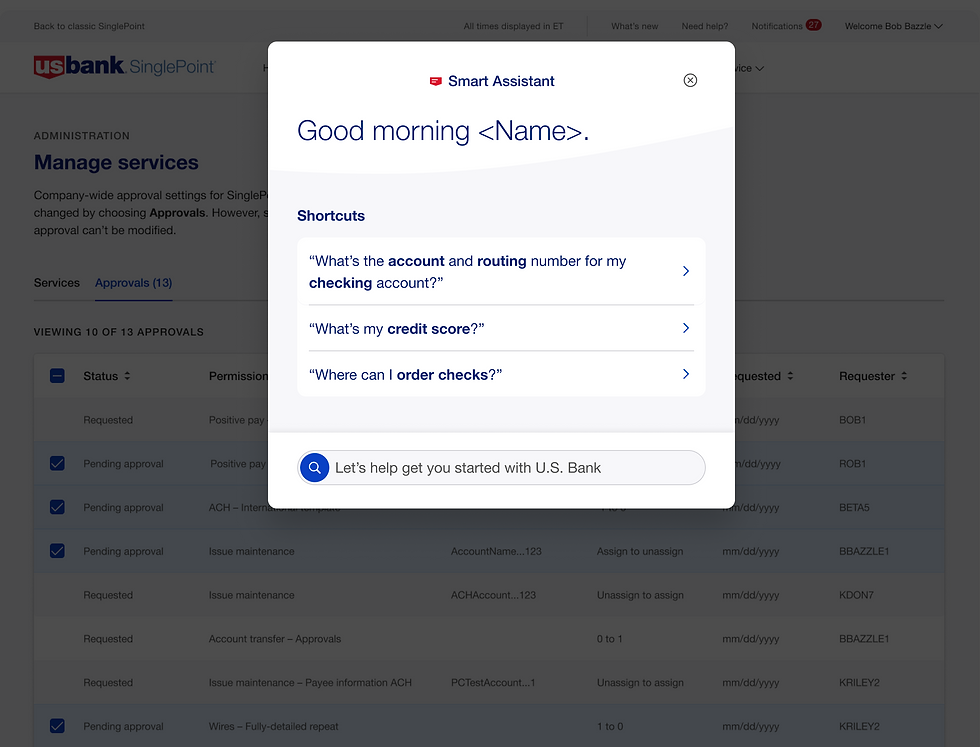
Intelligent Search
AI-powered search with contextual suggestions and natural language processing for faster information discovery.
Smart Filters
Adaptive filtering system that learns user behavior and suggests relevant filters automatically.
Search Analytics
Real-time analytics dashboard showing search patterns and user behavior for continuous optimization.
Mobile Responsive
Fully responsive design optimized for desktop, tablet, and mobile devices with touch-friendly interactions.


UI Design
Design Iterations


UI Design
Design Iterations
Outcomes
Outcomes & Impact
40%
Reduction in support calls
85%+
Search success rate
100K+
Users impacted
3x
Faster information discovery